
About Hey Draw!
Hey Draw is a platform built with the hope of helping artists in need of emergency funds!
Hey Draw is a platform built with the hope of helping artists in need of emergency funds!
Our Commission Wizard makes placing a commission request easy-peasy!
Step 2: Details
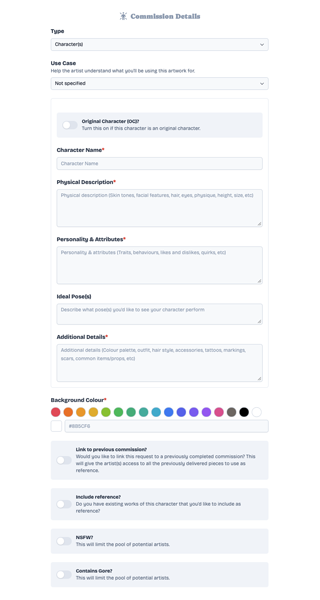
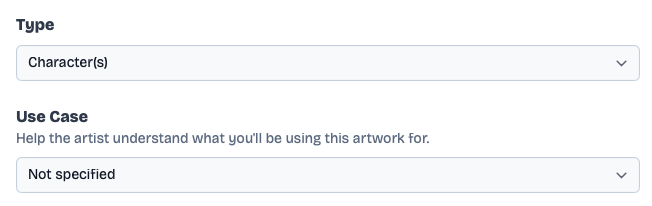
Character Type & Use Case
The character type you select is crucial in informing the artist of the anatomy and complexity of your character. Whether that be humanoid, anthropomorphic, an animal, a creature, or even a mech, these require different sets of skills and experience with their anatomy. The Use Case, however, is simply to help the artist better understand the purpose of the artwork (e.g.: Book cover, D&D character, mascot, etc).
Number of additional characters
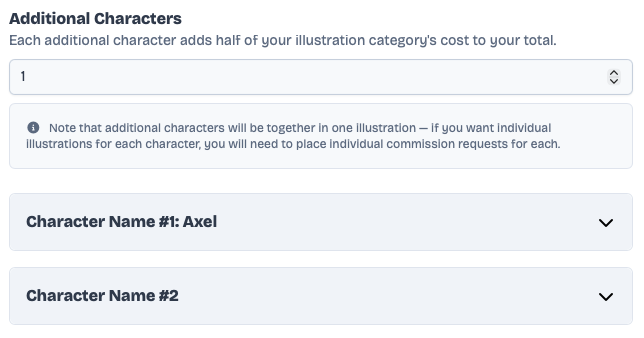
You can specify if you want multiple characters included in the illustration. Each additional character adds half the price of your selected Base Category from Step 1.
Note that this is specifically to add characters to the one illustration, not to order multiple illustrations of individual characters (e.g.: You want two of your OCs doing something together).
Character Description
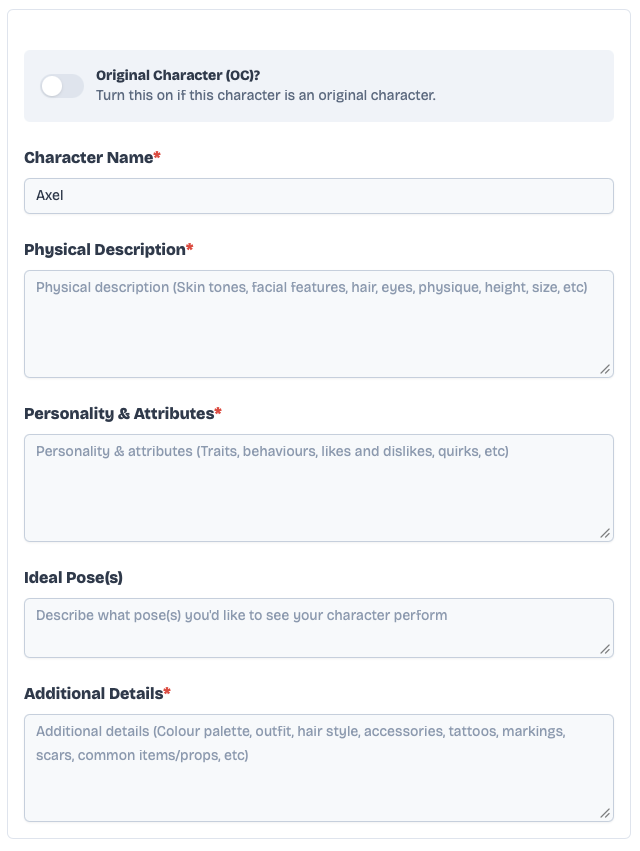
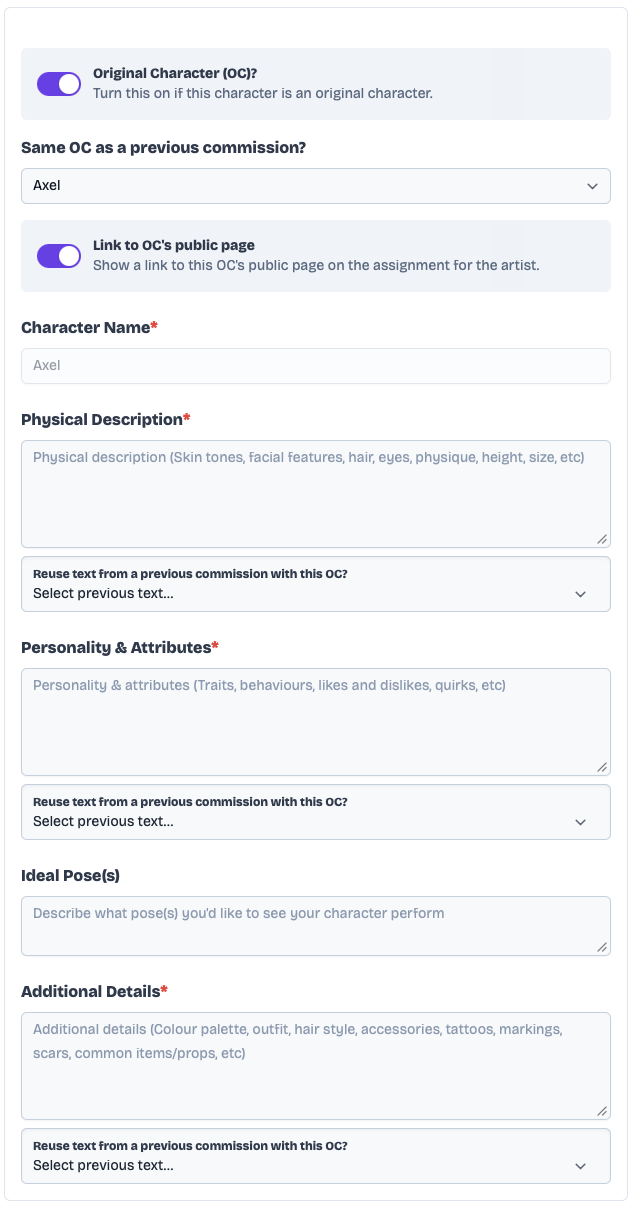
Here, you enter the character's name, physical description, personality & attributes, and any additional details that you think is relevant to the character and important for the artist to be aware of!
You also have the option to use a pre-existing OC (or save the details you just entered as a new OC for future reference)!
If you select a pre-existing OC, the following options appear:
Pose(s)
Enter what pose you would like your character (or poses if you've added additional characters) to be in. Feel free to provide multiple options if you're not picky!
Background Details
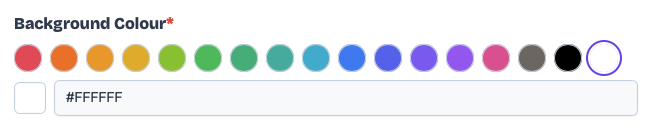
If you chose to have no background, you still get the option to choose a background colour for your final delivery.
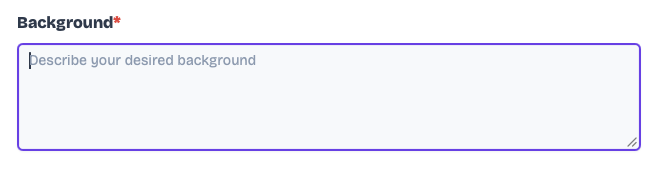
If you chose a simple or complex background, you can describe the background you have in mind to the artist.
References & Attachments
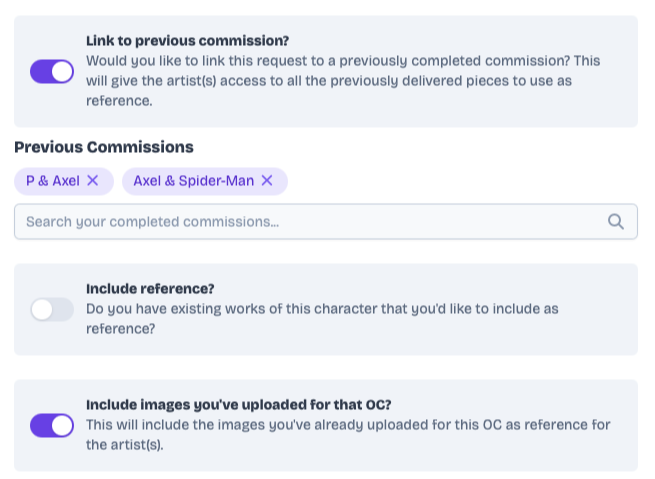
Here, you can include any additional materials that would help get your idea and vision across to the artist! That can be reference imagery, links to previous commissions, and any images you've already uploaded for your selected OC (if any)!
Additional Requirements
If you'd like to include sensitive materials in your commission, that's totally okay, but make sure you use those toggles to ensure you're matched with artist who are comfortable working on these types of illustrations!
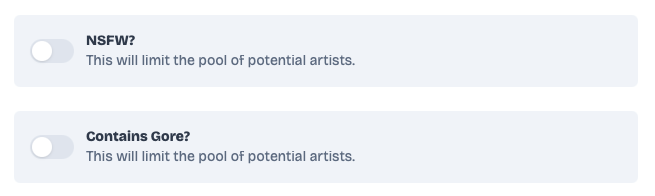
Note that if you enable "NSFW", a number of sub-options appear where you can pick exactly what type of NSFW content you expect to see in this commission (some examples include "Suggestive", "Explicit", "Fetish", and "Extreme / Taboo").
Okay, but how does the matching algorithm even work?!
In their settings, artists can choose what options they provide, as well as opt-out of being assigned algorithm-matched commissions.
Once you submit your commission assignment request through the commission wizard, a pool is created made up of artists that are opted-in to being matched and whose selected options meet your commission's option requirements.
From that pool, we filter out the artists that are unavailable or at capacity. We then sort artists based on their current workload, prioritizing those that have less work at that moment.
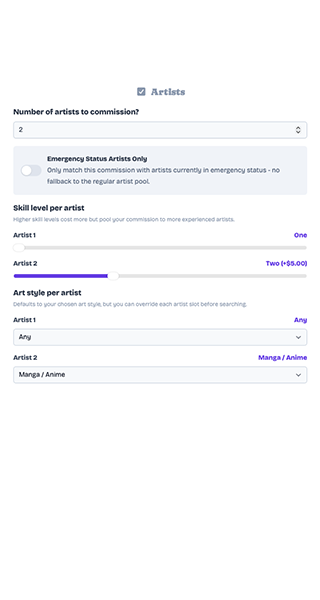
If you did not have the "Emergency Status Only" toggle enabled, we run a weighted randomizer that determines whether to stack the pool of artists that are in emergency status at the top of the list. This weighted randomizer works like so:
The idea here is that emergency status artists need a lot of work that they can complete rapidly in order to reach their goal and withdraw their payout before their deadlines, so we try to prioritize reserving smaller, easier commissions for them.
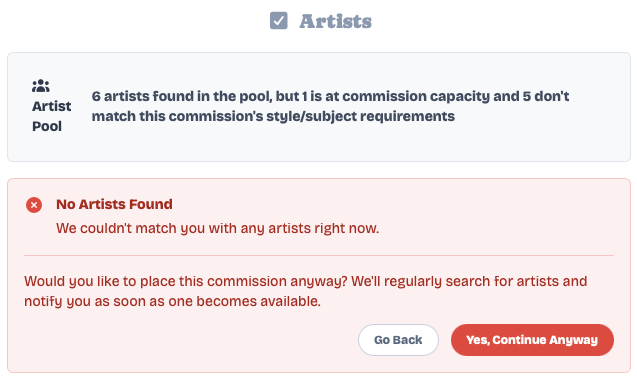
If the algorithm fails to find artists to assign, we place your commission request in a queue and the algorithm search tries again regularly until it gets you a match.
Did you say fixed pricing?
Yes, in order for this system to make sense, we've made algorithm-based commissions use fixed prices.
If the algorithm took every individual artist's pricing for each add-on, the matching pools would be too fragmented, and it would be really difficult to actually find matches. But note that these prices are for algorithm-assigned commissions only, not direct commissions.
We've discussed with many artists to find a happy median for these fixed prices, and they may change from time-to-time as we continue to work with artists to refine them.
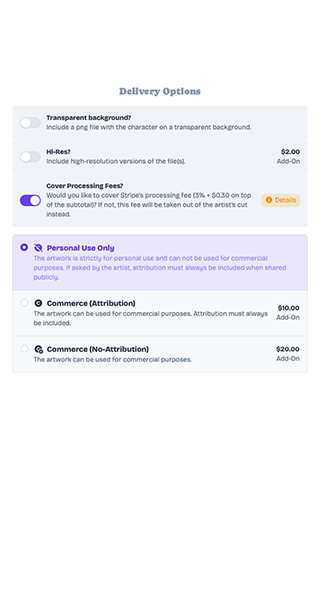
As a commissioner, you also have the option to cover processing fees, which we highly encourage. As much as we'd love to not have processing fees, these are put in place by Stripe, our payment processor. If you choose not to cover those fees, they will unfortunately be taken out of the artist's revenue.
Note that covering fees is mandatory if you select "Emergency Artists Only" in the wizard.
In addition to this pricing, we also charge a platform fee of only $1 USD per artist assigned to a commission! Use the calculator below to get an idea of how much you would pay for an algorithm-assigned commission, how much each artist that is assigned to the commission would pay, and how much our platform would collect.
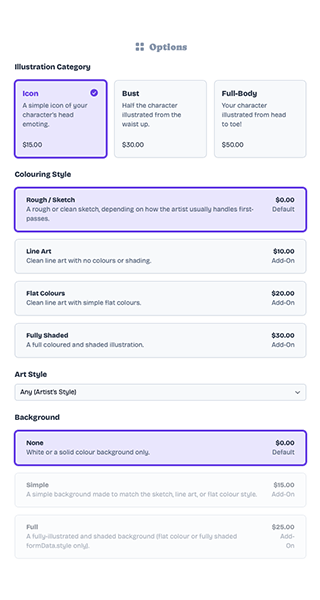
Character's head or prop, often for avatars.
15 per artist
Only the top half of a character. Great if you don't need a full illustration!
30 per artist
The character's entire body visible in frame, usually posing or performing some sort of action. Great for showing off your character, reminiscing narrative moments your character lived through, or prints!
50 per artist
Style
Sketch
Default
Style
Line Art
Add-On
Style
Flat Colours
Add-On
Style
Fully Shaded
Add-On
Background
No Background
Default
Background
Simple
Add-On
Background
Full / Detailed
Add-On
Commissioners have the option to cover processing fees. Hey Draw only keeps $1 per commission, per artist. Mostly to cover salaries, fees, and maintenance. Any money raised beyond that is re-distributed to the artists on our platform! Processing fees not included.
Commission Assignments are where all the magic happens!
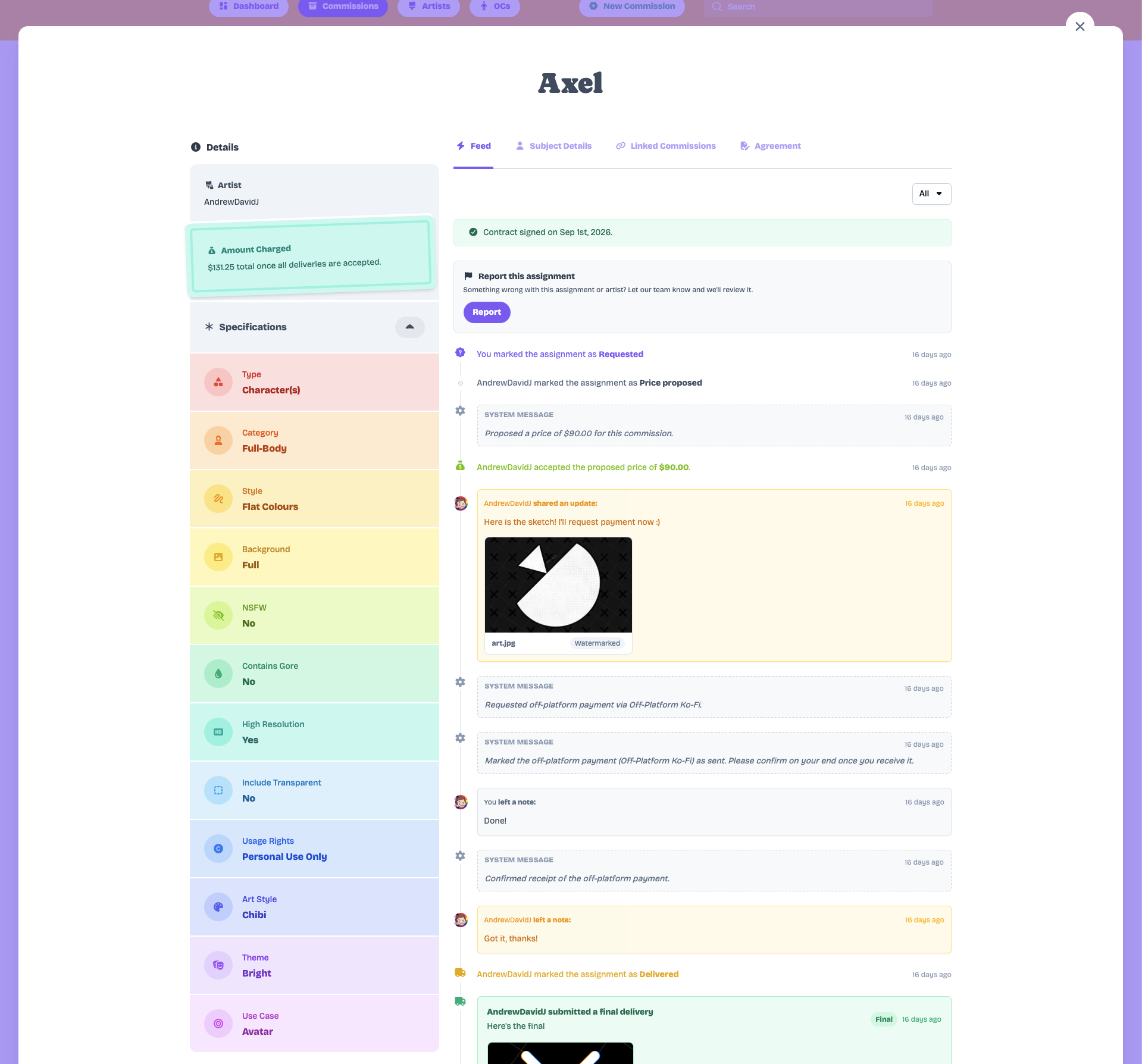
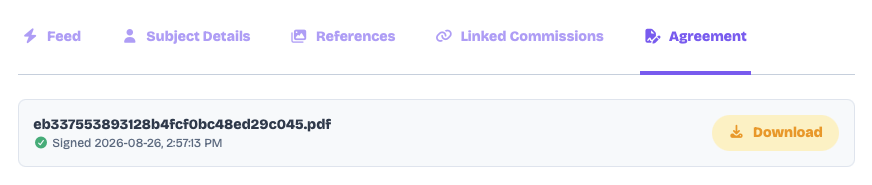
This is where both the commissioner and the artist keep track of the commission. You use it to communicate anonymously (or not anonymously if it's a direct commission), review deliverables, and keep track of all the information relating to the commission, including commission specifications, character details, reference material, linked commissions, and agreement contracts.
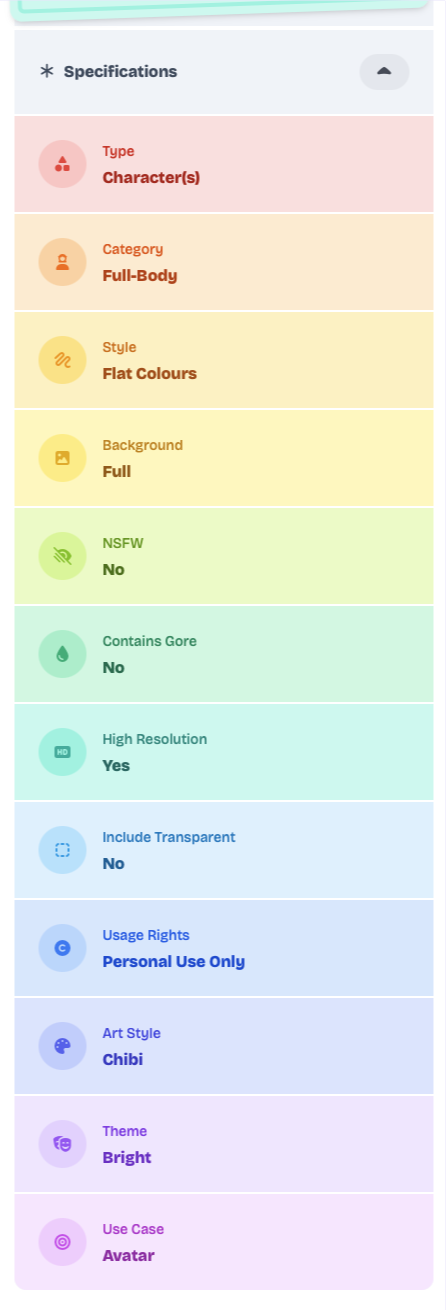
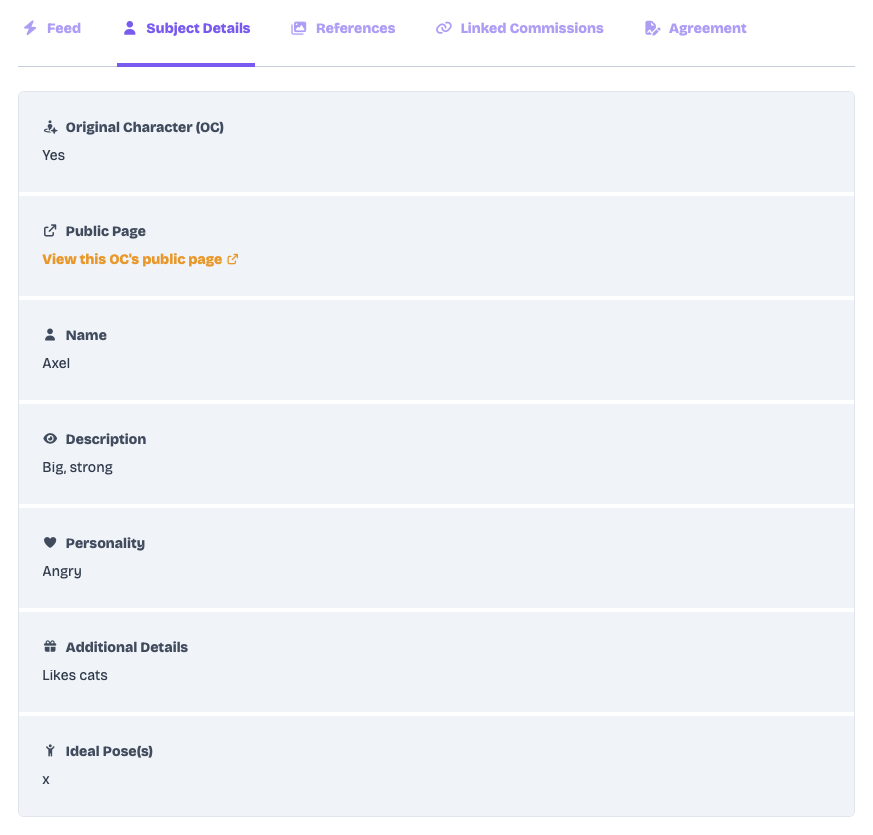
So what's the commissioner's perspective?
As a commissioner, you can swap between all the artists assigned to that commission here, assuming you've assigned more than one. You can also review and sign the agreement contract, communicate with the artist directly, upload images and files to share with the artist, approve or decline deliveries, and request revisions!
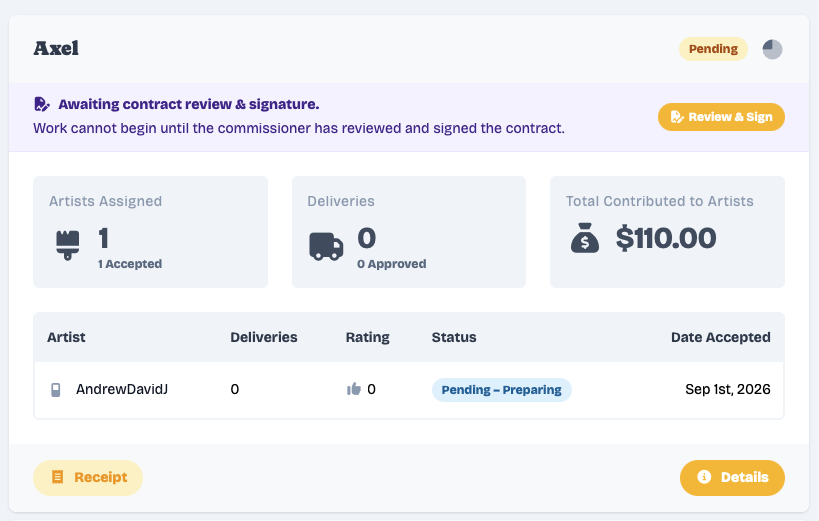
On the commission card, you can see a list of the assigned artists and the individual statuses of each assignment, the overall status for the commission, the receipt, and any actions that are required from you will be highlighted at the top (such as a delivery pending approval or a contract waiting for your review).
... And the artist's?
As an artist, you can see all the same details that the commissioner can see. You can also communicate and update the status of the assignment to keep the commissioner up-to-date, send images and files, submit delivery updates, submit final deliverables, set a delivery date estimate (which is completely optional), ask for consent to share the final deliverable publicly, share your emergency status (if it isn't public), and reveal yourself to the commissioner (after the delivery is approved).
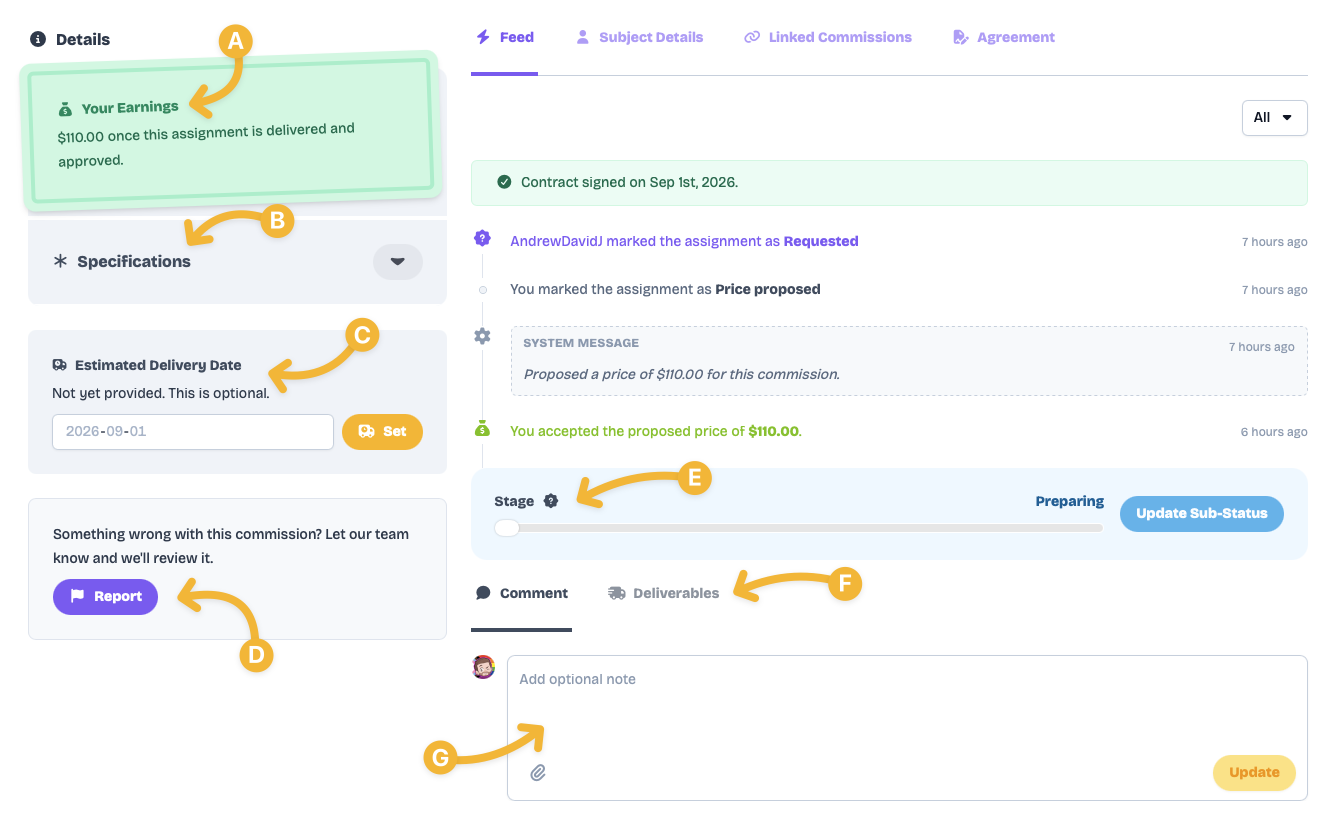
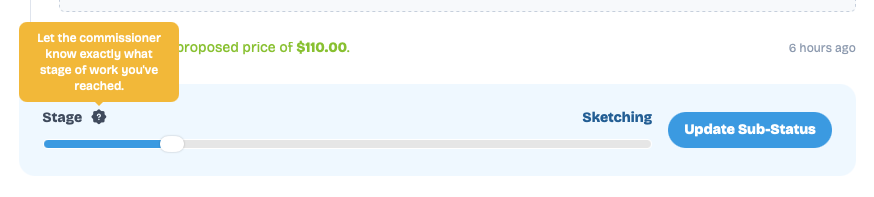
Keep the commissioner inform by updating the status of the assignment. Choose between "Preparing", "Sketching", "Inking / Line-work", "Colouring", "Shading", and "Finalizing / Touch-Ups".
Note that you can move the status back-and-forth, it's not restricted to only moving it forward, so if you move it to "Inking", but then realize you still have more sketching work to do, you can move it back to "Sketching".
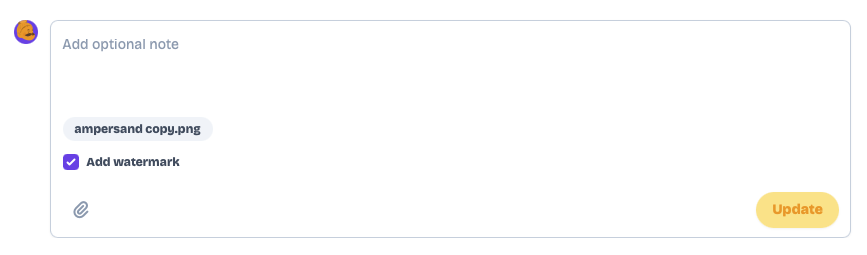
In order to protect your work, when attaching images to comments, you can check the "use watermark" checkbox to add watermarking and glazing to the image before uploading it. This process is applied directly onto the raw image before storing it on our servers, so we do not store the original unaltered version.
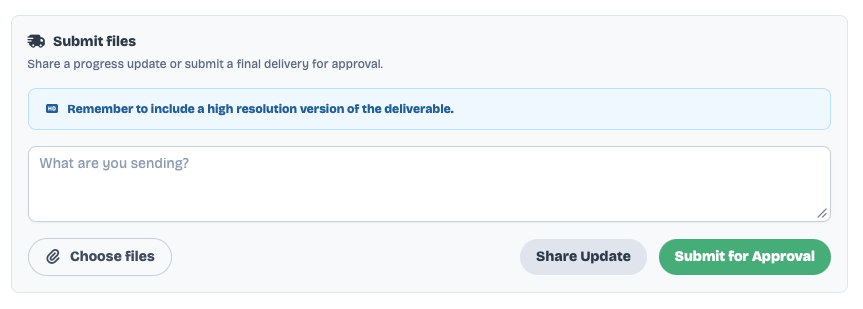
Here, you can share "Deliverable Updates", which are work-in-progress shots of the work you're doing, and you can submit your final deliverables for approval.
If the commissioner requested a high-resolution deliverable or a version with a transparent background, you will see reminders here to make sure you include those files as well.

After the final deliverable is approved, this action box will appear where you can ask the commissioner for consent to share the work publicly. If they agree, the delivery preview (watermarked and glazed) will appear in the public gallery, on your artist profile (if public), and on the related OC's page (if public).
Either party can revoke consent at any point afterwards.
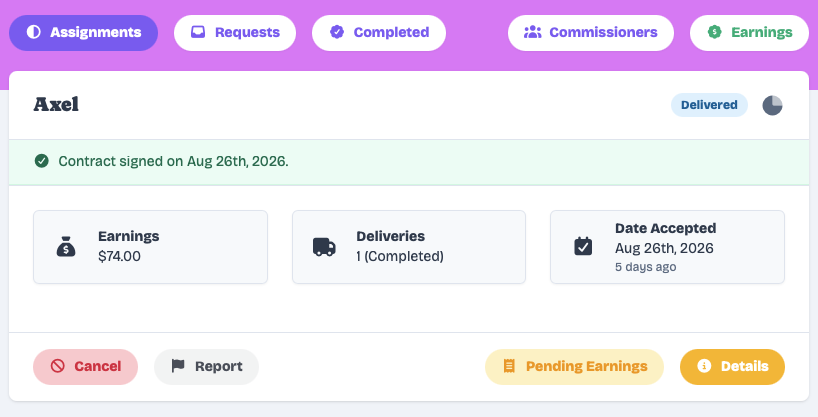
All your assignments are listed on your dashboard. On the assignment card, you can see the earnings you will receive after delivery, the assignment's status, action buttons to report or cancel the assignment, and if any actions that are required from you will be highlighted at the top.
Okay, so what happens after the deliverable is submitted?
Once the artist delivers their work, the commissioner will have three days to approve or request revisions. If they do not perform an action, the delivery is automatically approved and the commission is marked as completed. Below is what the commissioner sees when the artist submits their delivery.
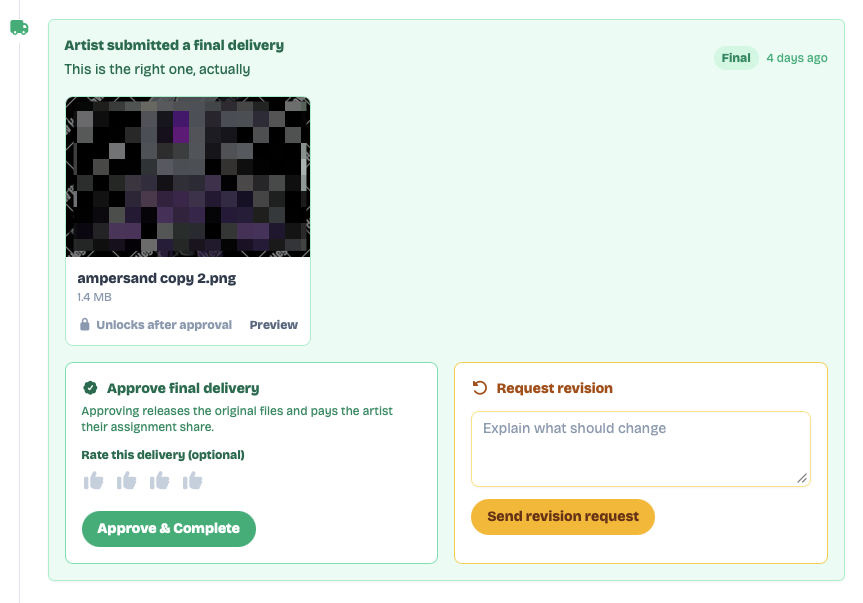
If the commissioner approves, they are given access to the deliverable files and are also prompted to leave you some "Thumbs Ups", which contribute towards your level.
If they decline, they are prompted to request revisions. When requesting revisions, it is up to the artist to determine whether they will include that revision work with the initial payment or charge additional fees for the work.
If the artist decides to charge, they can propose the price they want to charge and the commissioner can choose to either accept the proposed price, counter with a different price, or decline altogether, which automatically approves the commission.
After the commission is complete, new actions become available: A button to ask for consent to share the work publicly (only the artist can initiate this), a prompt to leave a tip (only the commissioner sees this), a button to block the other party (blocking means neither party will ever be matched together again), and a button for the artist to reveal themselves to the commissioner (more on that in the Artists section).
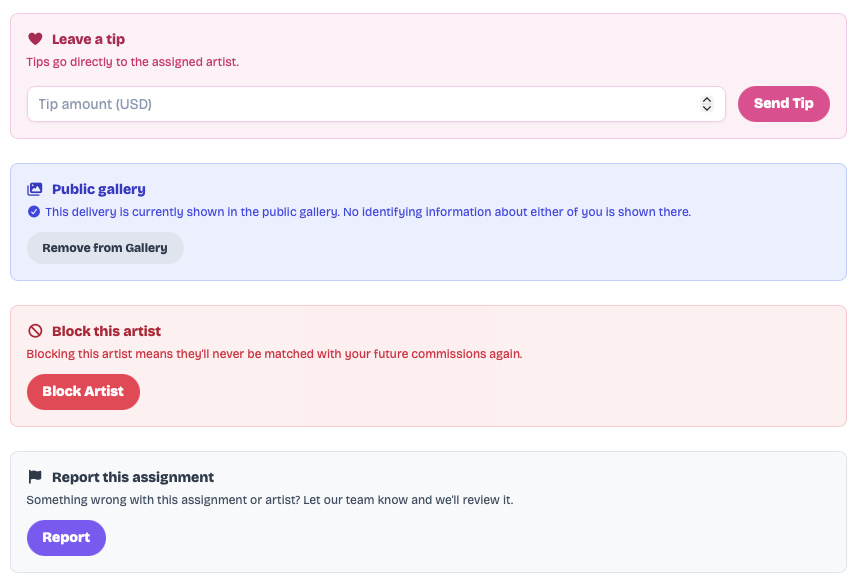
This is the commissioner's perspective. In this case, they haven't left a tip yet (so the prompt to tip is still there), the artist asked for consent to share and the commissioner agreed, and the commissioner has neither blocked nor reported the artist, so both prompts are also still there.
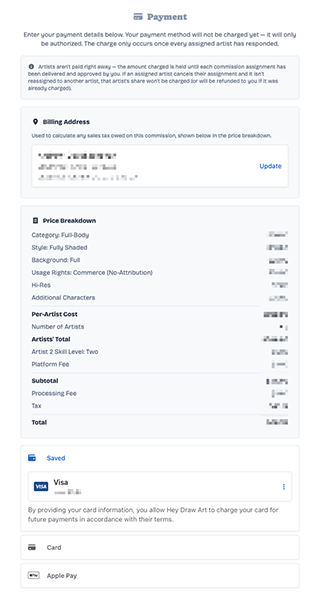
And how does payment work exactly?
As a commissioner, when you place a commission request, you get charged the full amount and Hey Draw holds that amount in escrow. Any extra charges requested by the artist for revision requests will be collected upon agreeing to the charge and will be held in the same escrow.
We use this method to protect the artist from scams and ensure they get paid. In the future, we will have a system in place that allows for commissioners to earn "trust". These commissioners will be able to simply be charged a "payment intent" (no real money is exchanged, only card validation) instead of using the escrow system, and the actual charge will occur once an artist delivers.
When artists complete their assigned commissions, the amount they are owed is transferred from the escrow to their accounts. If the commissioner leaves a tip for the artist after delivery, that payment goes directly to the artist and does not go through our escrow system.
If an artist cancels a commission request partway after accepting it, the commissioner is given the option to either re-assign it to a new match, or to simply refund the amount that would have been owed to that artist.
Payment for direct commissions work a little differently, but more on that in the Artists section.
Unlock artists like collectibles and commission them directly!
More details soon!
Bring all your original characters to life!
More details soon!
Help artists in need of emergency funds!
More details soon!
Sorry, no corporate greed here!
More details soon!
You can join right away and start placing commission requests! Soon, you'll see your vision come to life!